How to get your Workday export
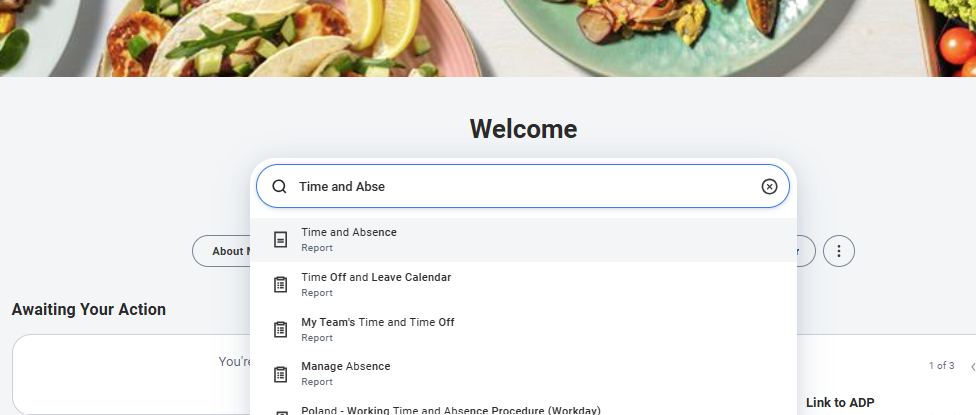
1–3 Sign in to Workday, go to the search bar, type in "Time and Absence", and select the "Time and Absence Report" option from the dropdown.
Workday search bar with "Time and Abse" typed in, showing the Time and Absence Report option highlighted in the dropdown
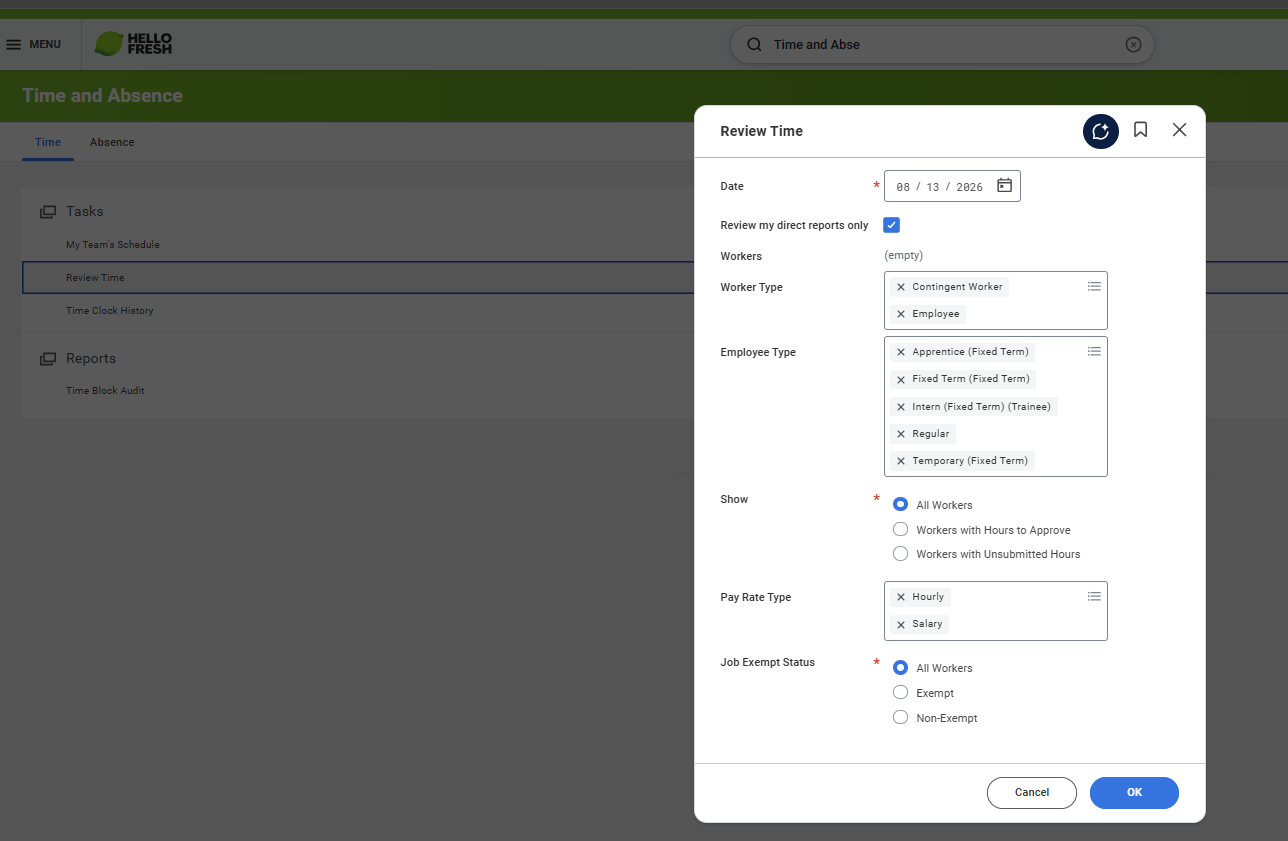
4 Click "Review Time" and then select "OK".
Workday Review Time dialog with date and filter fields, and the OK button at bottom right
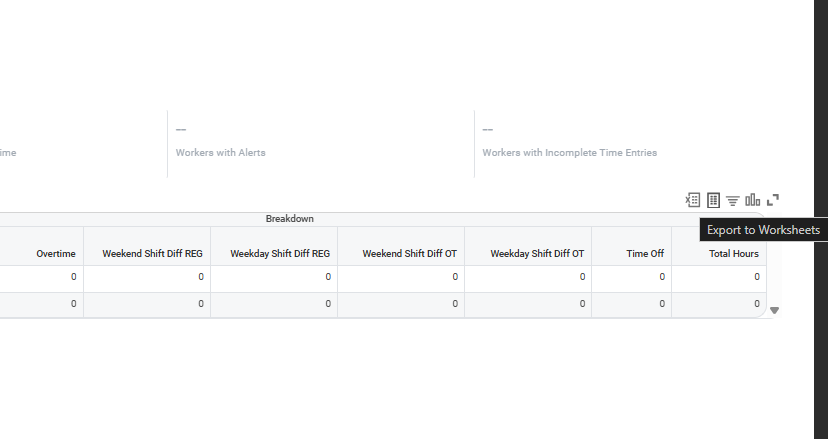
5 Select "Export to Worksheets" — the second icon from the left, above the Breakdown table.
Not the first button — do not export to Excel, export to Worksheets.
Workday Breakdown table toolbar with the Export to Worksheets icon (second from left) highlighted
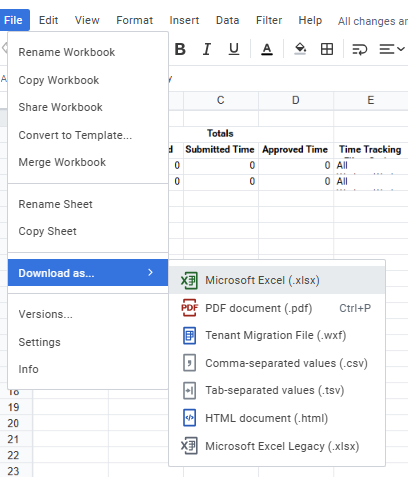
6 From Sheets, go to File → Download as → Microsoft Excel (.xlsx) and click Download.
Google Sheets File menu with Download as submenu open, Microsoft Excel (.xlsx) highlighted
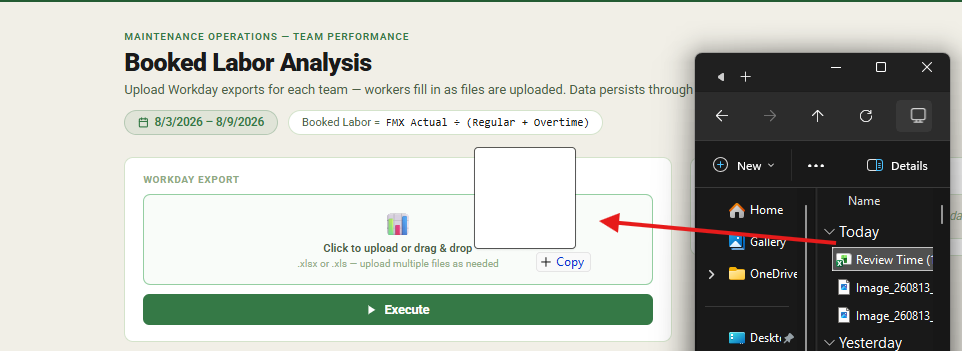
7–8 Open your Downloads folder and drag the file into the file drop area on this page. Click Execute and wait about 60 seconds for your roster to populate.
File Explorer's Downloads folder next to the Booked Labor Analysis page, with an arrow showing the downloaded file being dragged into the Workday Export drop zone

Workday Export

Uploading for:
📊

Click to upload or drag & drop

.xlsx or .xls — upload multiple files as needed

Original Files Uploaded This Week

No files uploaded yet this week.

FMX Status

Waiting for Workday upload…

AMM Teams
Week:
Results
Saved Reports